
A new project can be easily added manually via “Add” under the menu item “Projects” in the main left navigation.
Click on it to open a new subpage/input mask to enter all the information about the new project.
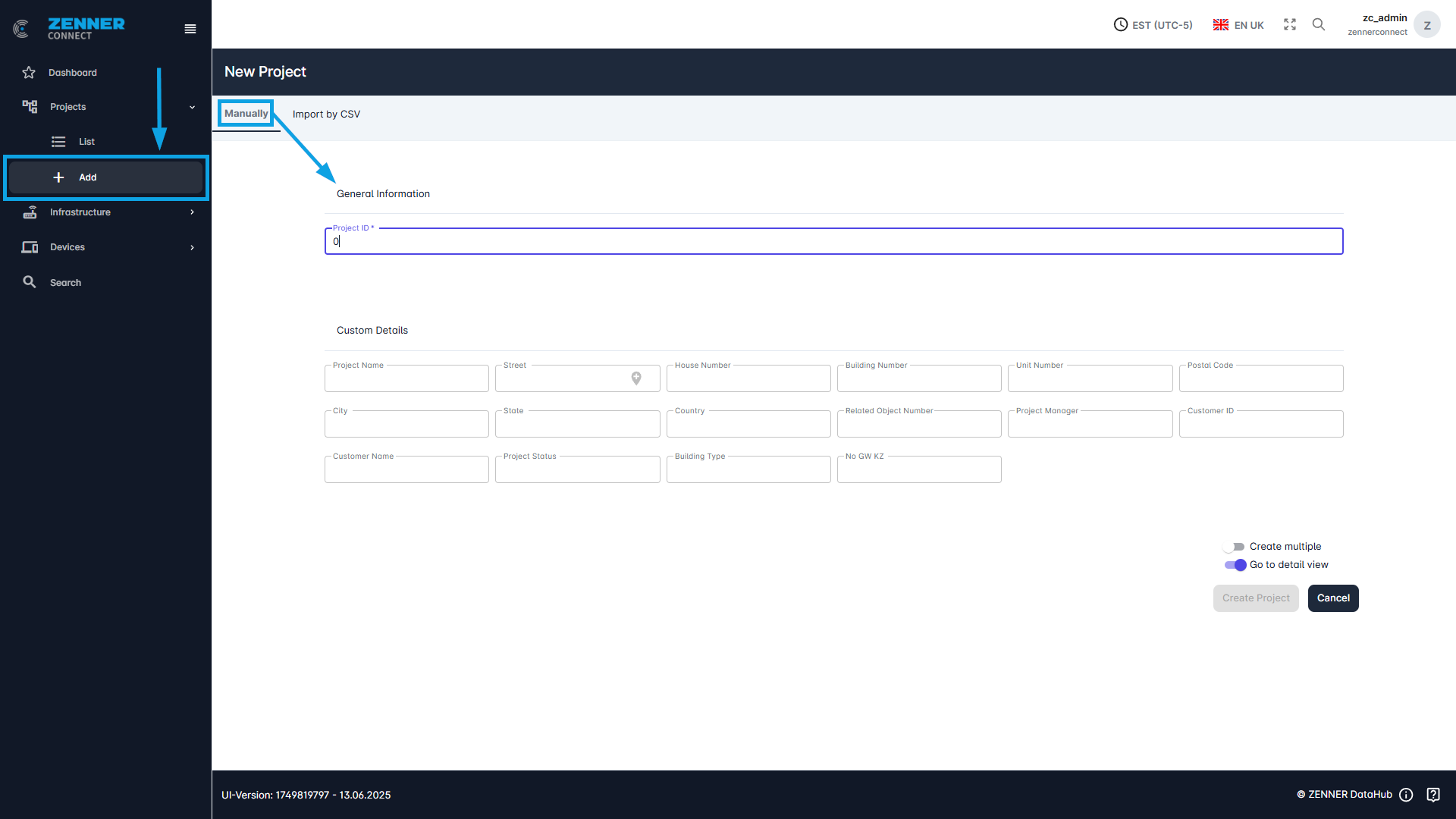
The following table provides an explanation of each input field when adding a new project:
Field | Meaning |
Project ID | The unique project ID to assign the project |
Project Name | The name of the project |
Street | The current street of the project location is specified here |
House Number | House number of the project location |
Building Number | A building number to which the project is assigned |
Unit Number | Which unit number the project has |
Postal Code | Zip code of the project location |
City | City in which the project is located |
State | State in which the project is located |
Country | Country in which the project is located |
Related Object Number | Indicates the property number |
Project Manager | The project manager responsible for this project |
Customer ID | The ID of the customer or the respective customer number |
Customer Name | The name of the associated customer |
Project Status | The current status of the project |
Building Type | Type of the building |
No GW KZ | Not needed |