
Wenn Sie mehrere Geräte auf einmal hinzufügen möchten, können Sie dies über den CSV-Import tun.
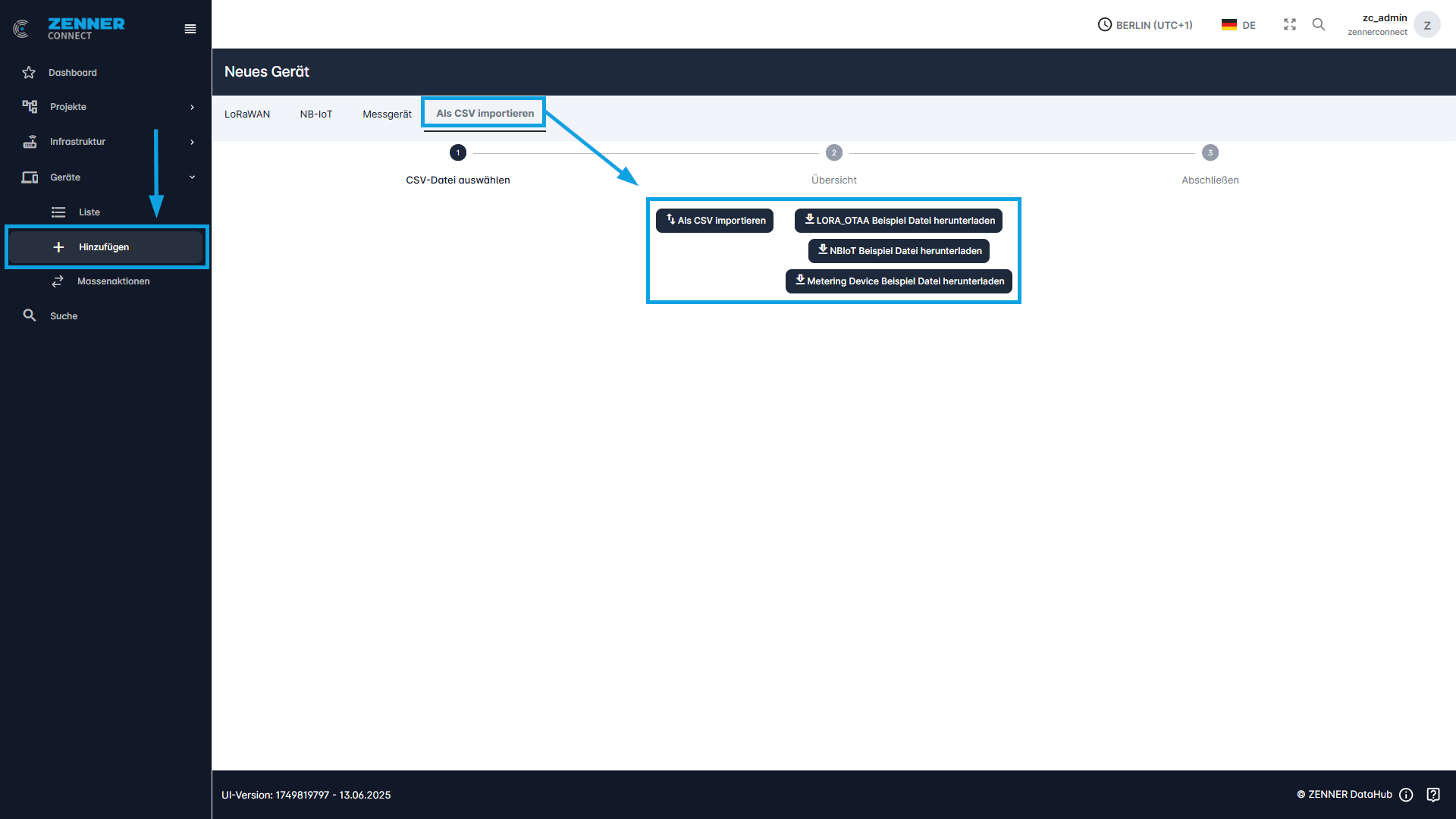
Zu diesem Zweck wird die Beispieldatei heruntergeladen. Die Informationen zu den jeweiligen Sensoren werden in die dafür vorgesehenen Felder eingegeben. Die neue Datei wird dann über die Schaltfläche „Als CSV importieren“ hochgeladen.
Hier müssen Sie die Beispieldatei des zu importierenden Gerätetyps auswählen. Es ist nicht möglich, verschiedene Gerätetypen mit einer einzigen Gerätedatei zu importieren. Für jeden Gerätetyp muss die entsprechende Beispieldatei ausgewählt werden.
Wichtig: Die Korrektheit der eingegebenen Daten wird beim Import nicht überprüft. Wenn in DevEUI, JoinEUI oder Appkey ein Fehler auftritt, wird das Gerät trotzdem erstellt. Es kann jedoch keine Verbindung herstellen, wenn die Daten falsch eingegeben wurden!
Im Folgenden ein Auszug aus einer Beispiel-CSV-Datei für LoRaWAN®-Geräte:

Field | Meaning |
devEUI | The devEUI (Device Extended Unique Identifier) of the device |
type | The device type must be always LORA_OTAA → can remain as in sample file |
joinEUI | The joinEUI of the device |
appKey | The appKey (Application Key) of the device |
devAddr | The devAddr (Device Address) of the device, automatically regenerated during each join process when activated via OTAA → can remain as in sample file |
nwkSKey | The nwkSkey (Network Session Key) of the device, automatically regenerated during each join process when activated via OTAA → can remain as in sample file |
appSKey | The appSKey (Application Session Key) of the device, automatically regenerated during each join process when activated via OTAA → can remain as in sample file |
rxDelay | RxDelay must be always 4 → can remain as in sample file |
classC | True for class C devices, otherwise false |
activated | True or false (only if it is activated it can join) |
parser | The parser is selected here, for ZENNER & PDC/NDC Devices it must be Minol/ZENNER |
status | Installation Status of the device → Mounted or dismounted |
| locationId (Project ID) | Project ID of the existing project to which the device is to be assigned, if needed |
street | The current street of the device location |
houseNo | House number of the device location |
postalCode | Postal code of the device location |
city | City of the device location |
geoType | Always enter “Point” unless no longitude and latitude are entered |
latitude | Latitude of the device location |
longitude | Longitude of the device location |
differentAddress | A different address can be entered here |
tenant | The tenant in which the device is created |
country | The country of the device location |
buildingNumber | The building number of the device location |
unit | The unit number of the device location |
alternative_address | An alternative address can be entered here |
| installationDate | Here you can select when the device was installed |
removalDate | Here you can select when the device was removed (if possible) |
installationPosition | Current installation Position of the device → e.g. room or floor |
medium | The medium captured by the device → water, electricity, gas |
manufacturer | The manufacturer of the device |
meterType | The meter type of the device |
pulseFactor | Pulse Factor = quantity of a pulse (see technical documents for the respective meter/device) Only important for sensors that send their data with pulse output, like ZENNER PDC/NDC Devices Must be entered, otherwise the calculation of the actual readings (measured values) and consumption will be wrong |
meterSize | The size of the meter |
initialMeterRead | Initial Meter Read of the device → Must be entered, otherwise it will assume 0. If nothing is entered, the value may be incorrect |
tags | To which tags the devices should be assigned |