
Devices that have not been stored in the UAA tenant before cannot simply be provisioned. In this case, however, you can add them manually as new. In the following, we explain how to do this for all the different three device types:
1. Add LoRaWAN® Devices Manually
To add a new LoRaWAN device manually, the following three device keys must be filled in:
- DevEUI- Device’s unique ID
- JoinEUI- Network/Application ID
- AppKey- Key used for secure joining
This information can be taken from the sensor or the packaging or the received electronical delivery note.
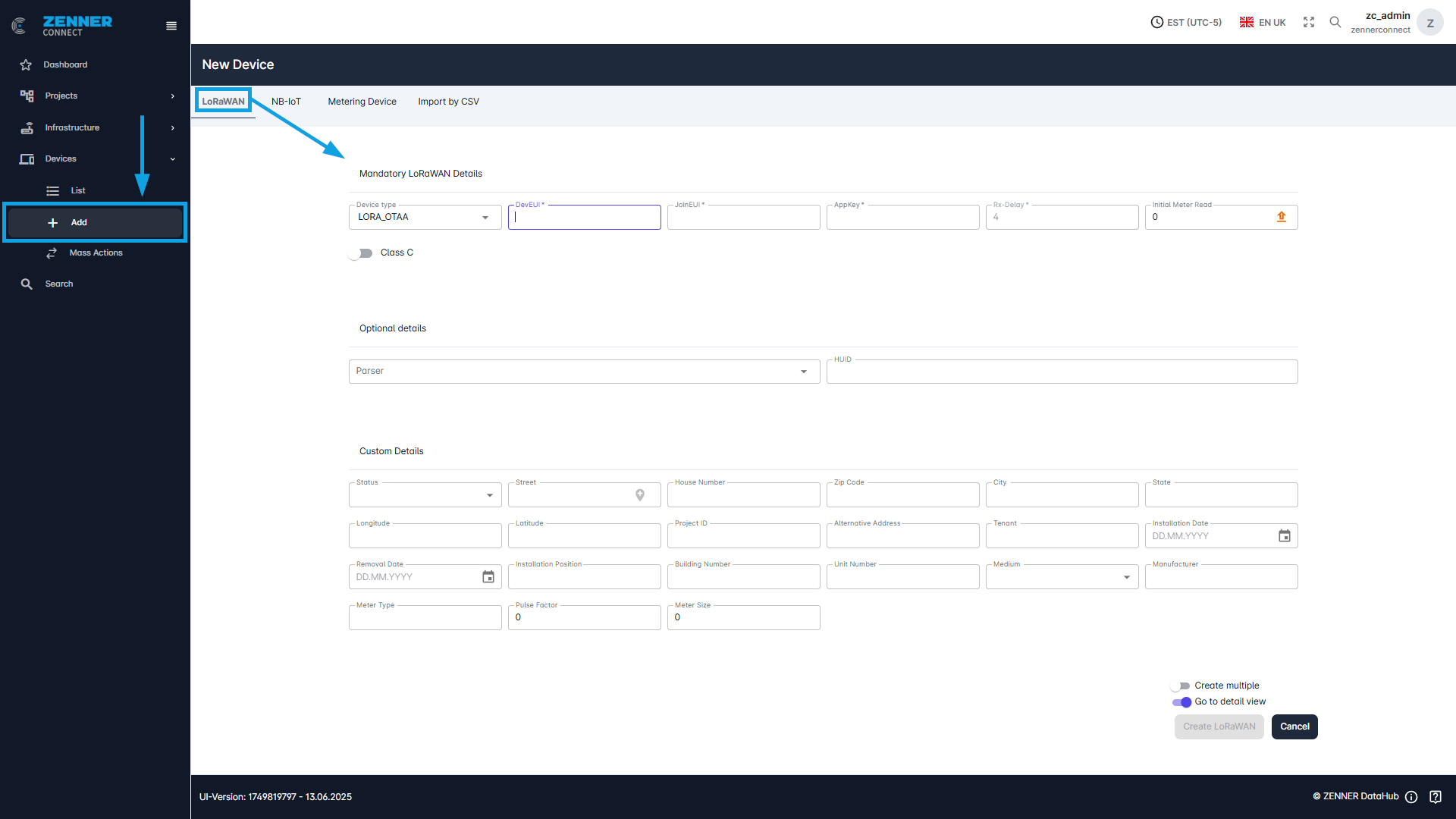
The parser for the sensor can be assigned directly under optional details.
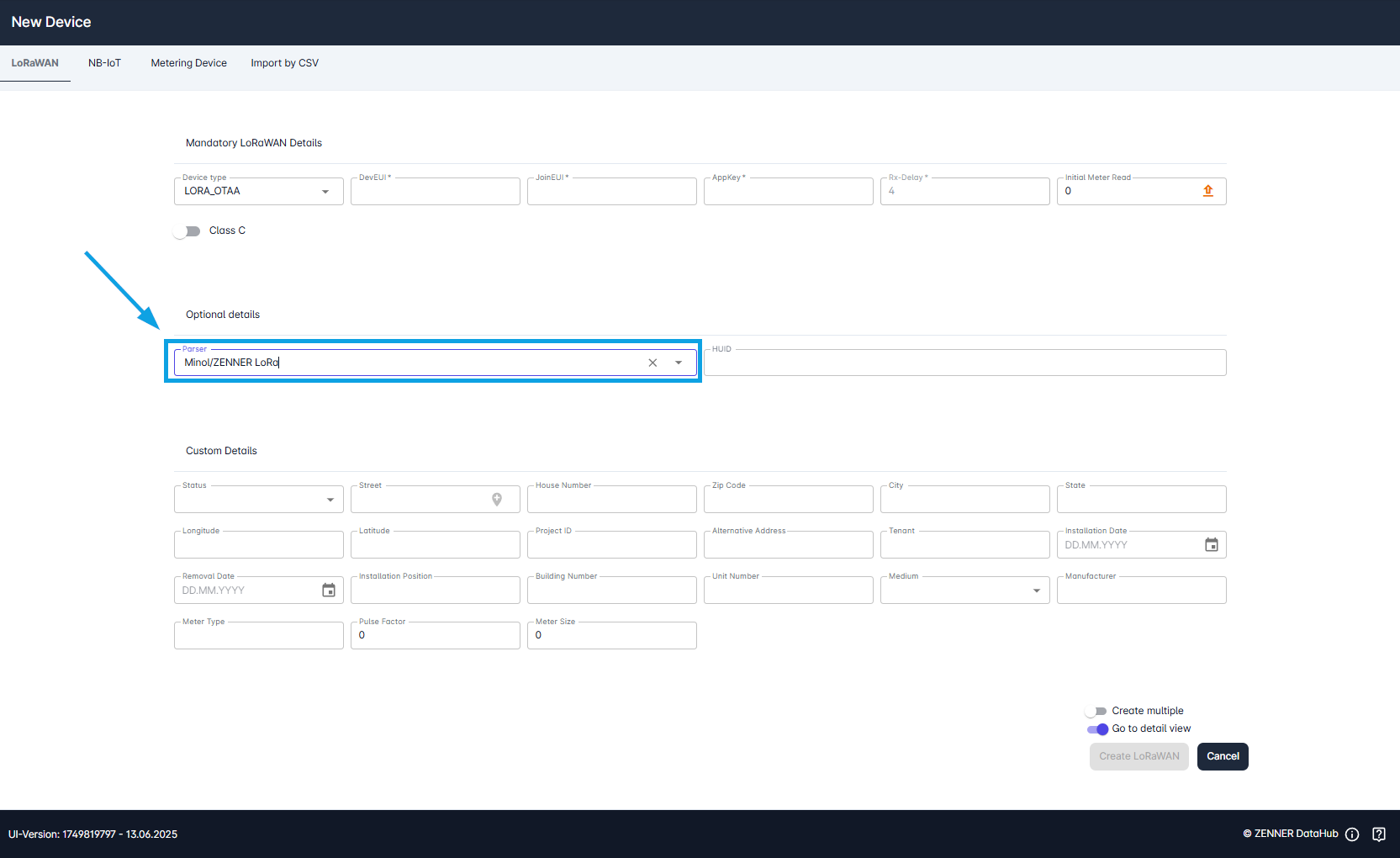
Important: If no parser or the wrong parser is selected, no measured values are displayed. This also applies if the sensor is working properly.
The custom details can be filled optionally.
Field | Meaning |
DevEUI | The devEUI (Device Extended Unique Identifier) of the device |
Device Type | The device type → selected automatically and cannot be changed |
JoinEUI | The joinEUI of the device |
AppKey | The appKey (Application Key) of the device |
Rx Delay | RxDelay must be always 4 → can remain as in sample file |
Class C | True for class C devices, otherwise false |
Parser | The parser is selected here, for ZENNER & PDC/NDC Devices it must be Minol/ZENNER |
Status | Installation Status of the device → Mounted or dismounted |
| Project ID (locationId) | Project ID of the existing project to which the device is to be assigned, if needed |
Street | The current street of the device location |
House Number | House number of the device location |
Postal Code | Postal code of the device location |
City | City of the device location |
| Latitude (latitude) | Latitude of the device location |
| Longitude (longitude) | Longitude of the device location |
| Alternative Address (alternative_address) | An alternative address can be entered here |
| Tenant (tenant) | The tenant in which the device is created |
| Country (country) | The country of the device location |
| Building Number (buildingNumber) | The building number of the device location |
| Unit (unit) | The unit number of the device location |
| Installation Date (installationDate) | Here you can select when the device was installed |
| Removal Date (removalDate) | Here you can select when the device was removed (if possible) |
| Installation Position (installationPosition) | Current installation Position of the device → e.g. room or floor |
| Medium (medium) | The medium captured by the device → water, electricity, gas |
Manufacturer | The manufacturer of the device |
| Meter Type (meterType) | The meter type of the device |
| Pulse Factor (pulseFactor) | Pulse Factor = quantity of a pulse (see technical documents for the respective meter/device) Only important for sensors that send their data with pulse output, like ZENNER PDC/NDC Devices Must be entered, otherwise the calculation of the actual readings (measured values) and consumption will be wrong |
| Meter Size (meterSize) | The size of the meter |
| Initial Meter Read (initialMeterRead) | Initial Meter Read (IMR) of the device → Must be entered, otherwise it will assume 0. If nothing is entered, the value may be incorrect |
| Tags (tags) | To which tags the devices should be assigned |
2. Add NB-IoT Devices Manually
To add a NB-IoT device manually, the following information must be filled in:
- Unique Identifier
This information can be taken from the sensor or the packaging or the received electronical delivery note.
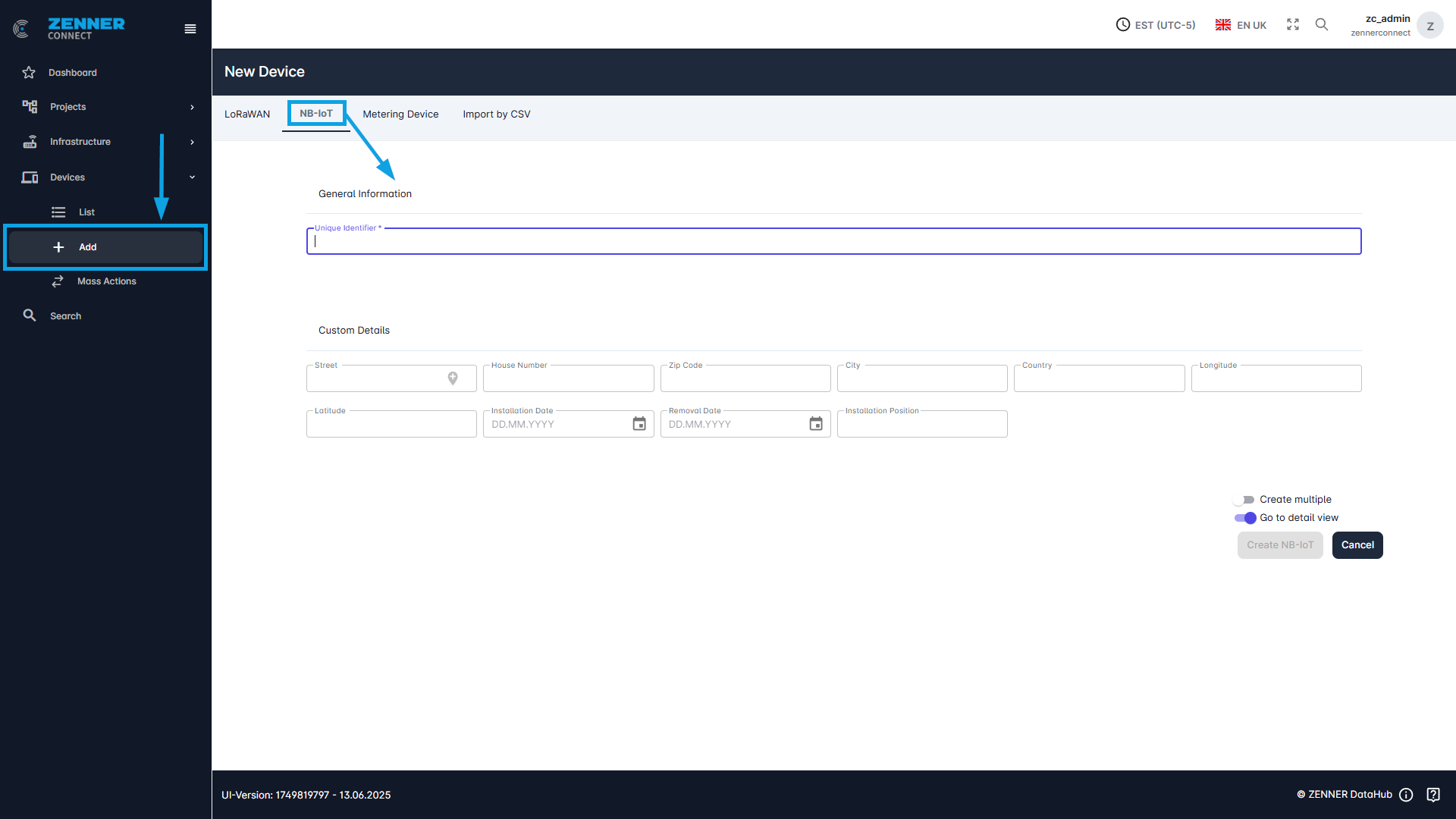
The custom details can be created optionally.
Column | Meaning |
|---|---|
| Street | The current street of the device is specified here |
| House Number | House number of the device location |
| Zip Code | Postal code of the device location |
| City | City in which the device is located |
| Country | Country in which the device is located |
| Longitude | Longitude at which the device is located |
| Latitude | Latitude at which the device is located |
| Installation date | Here you can select when the device was installed |
| Removal date | Here you can select when the device was removed (if possible) |
| Installation Position | The position in which the device is installed |
3. Add Metering/OMS Devices Manually
To add a Metering/OMS device manually, the following information must be filled in:
- Ownernumber
- AES key (or select no AES key needed)
- Subtype (WMBus or MBus)
This information can be taken from the sensor or the packaging or the received electronical delivery note.
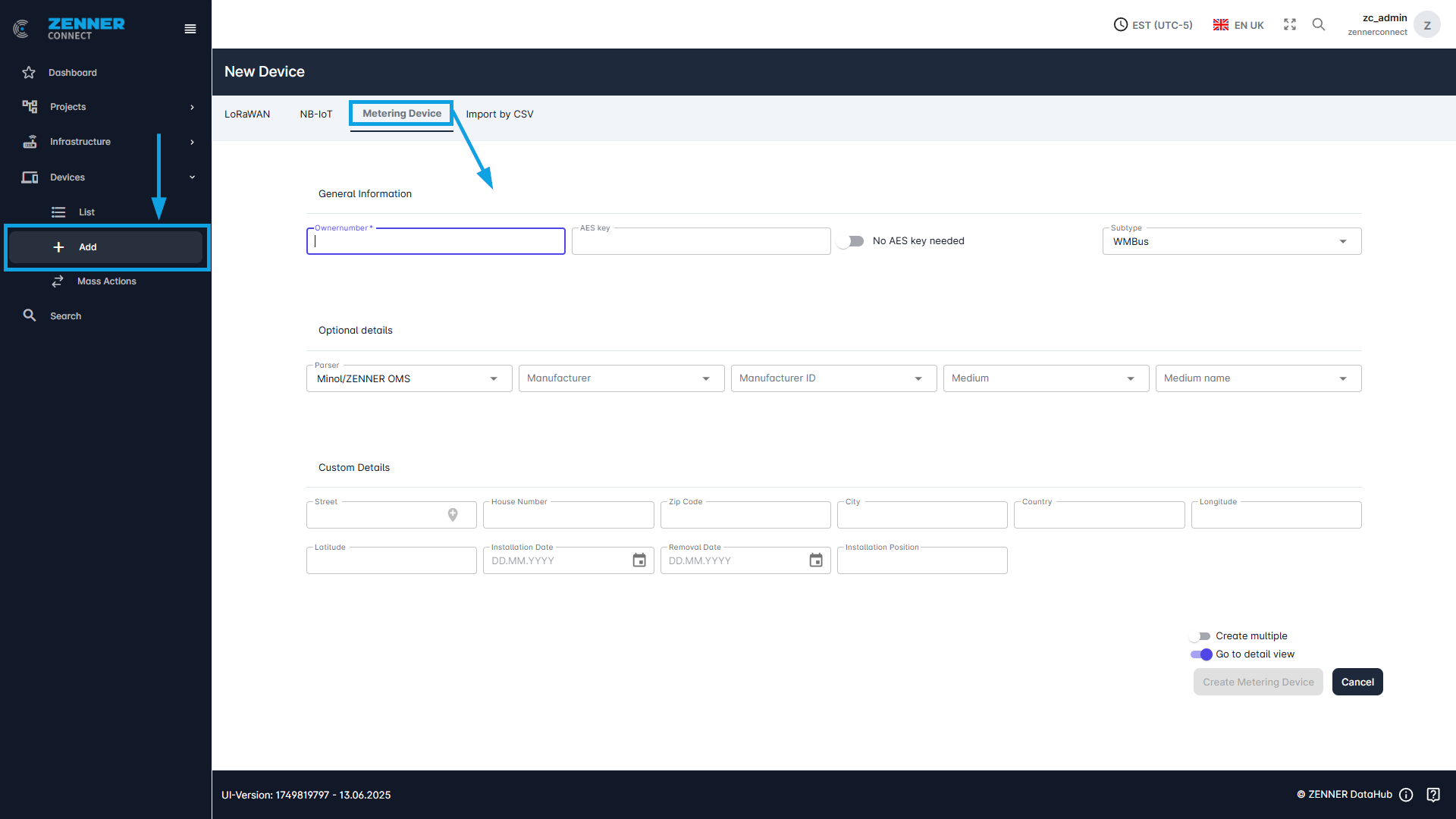
The parser for the sensor can be assigned directly under optional details.
Here you also have the option of selecting the manufacturer and the manufacturer ID directly from the list or entering them yourself.
Under “Medium” you can then select a number between 1 and 9 and under “Medium Name” you can select what kind of medium it is, e.g. electricity meter, heat meter or gas meter.
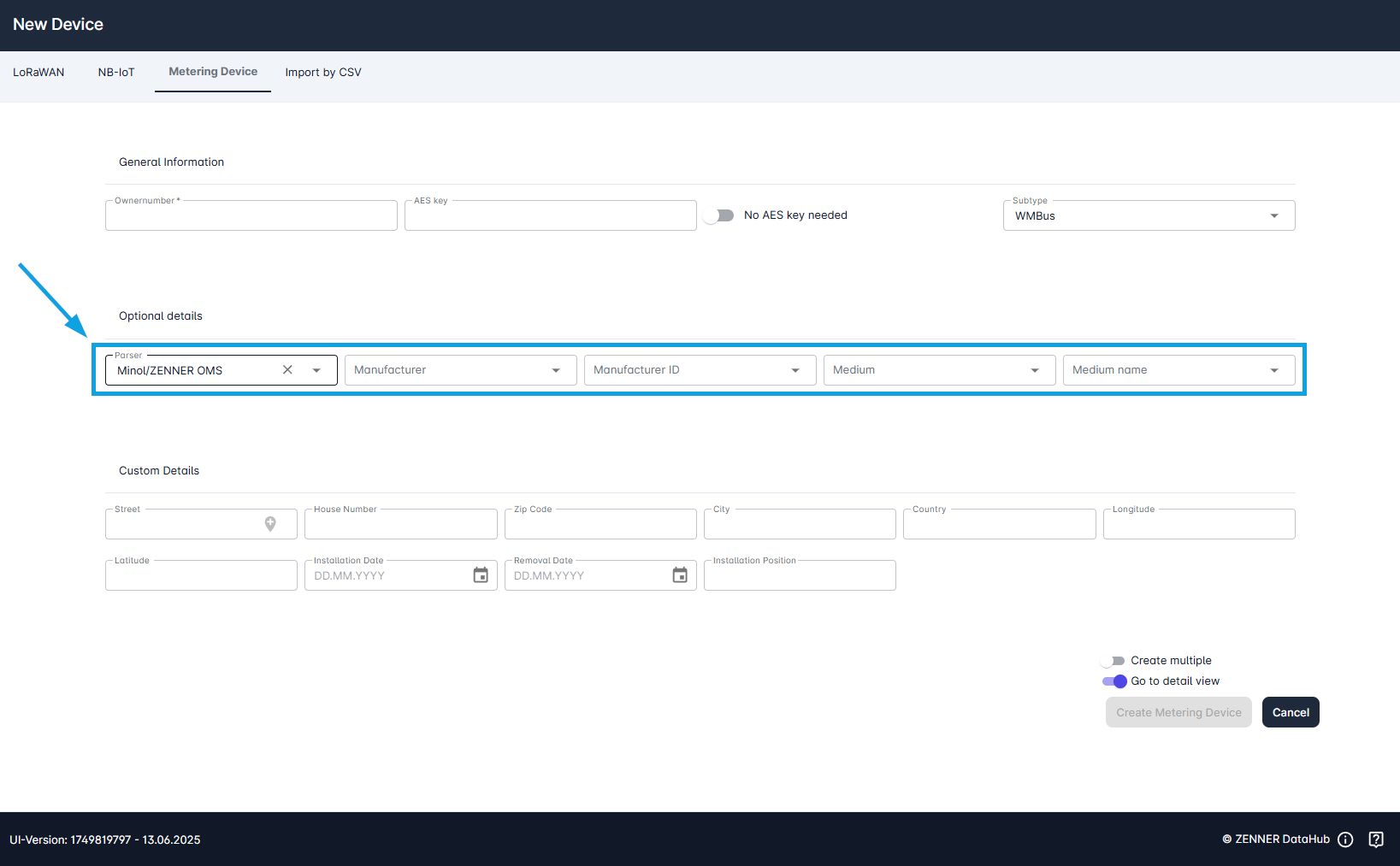
Important: If no parser or the wrong parser is selected, no measured values are displayed. This also applies if the sensor is working properly.
The custom details can be filled in optionally.
Column | Meaning |
|---|---|
| Street | The current street of the device is specified here |
| House Number | House number of the device location |
| Zip Code | Postal code of the device location |
| City | City in which the device is located |
| Country | Country in which the device is located |
| Longitude | Longitude at which the device is located |
| Latitude | Latitude at which the device is located |
| Installation date | Here you can select when the device was installed |
| Removal date | Here you can select when the device was removed (if possible) |
| Installation Position | The position in which the device is installed |