
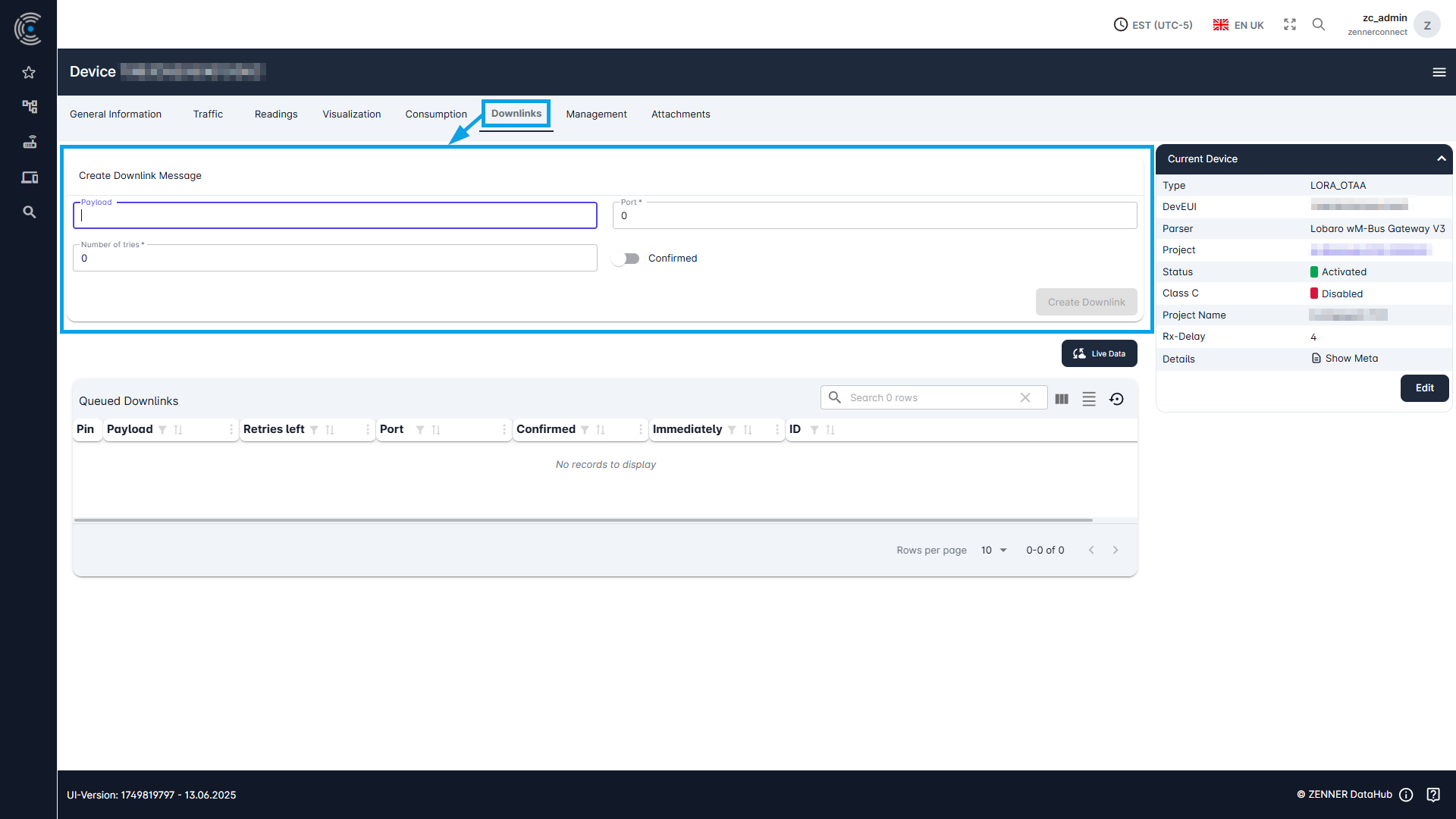
To send downlinks to devices, select the relevant device from the device list and then navigate to the “Downlinks” tab. The following information is required:
- The payload of the downlink message (can be found in the device documentation)
- The port that is specified for downlink messages
- The number of tries = how often the downlink should be sent again in case that the first trie(s) fail
- Confirmed (yes/no) = downlink triggers a confirmation from the sensor when it has been successfully received
Tip: When you change a device’s configuration, it can be helpful to add information about the previous configuration to the device as an attachment by uploading it as a PDF file in the ‘Attachments’ tab. This is useful for you and other relevant users.