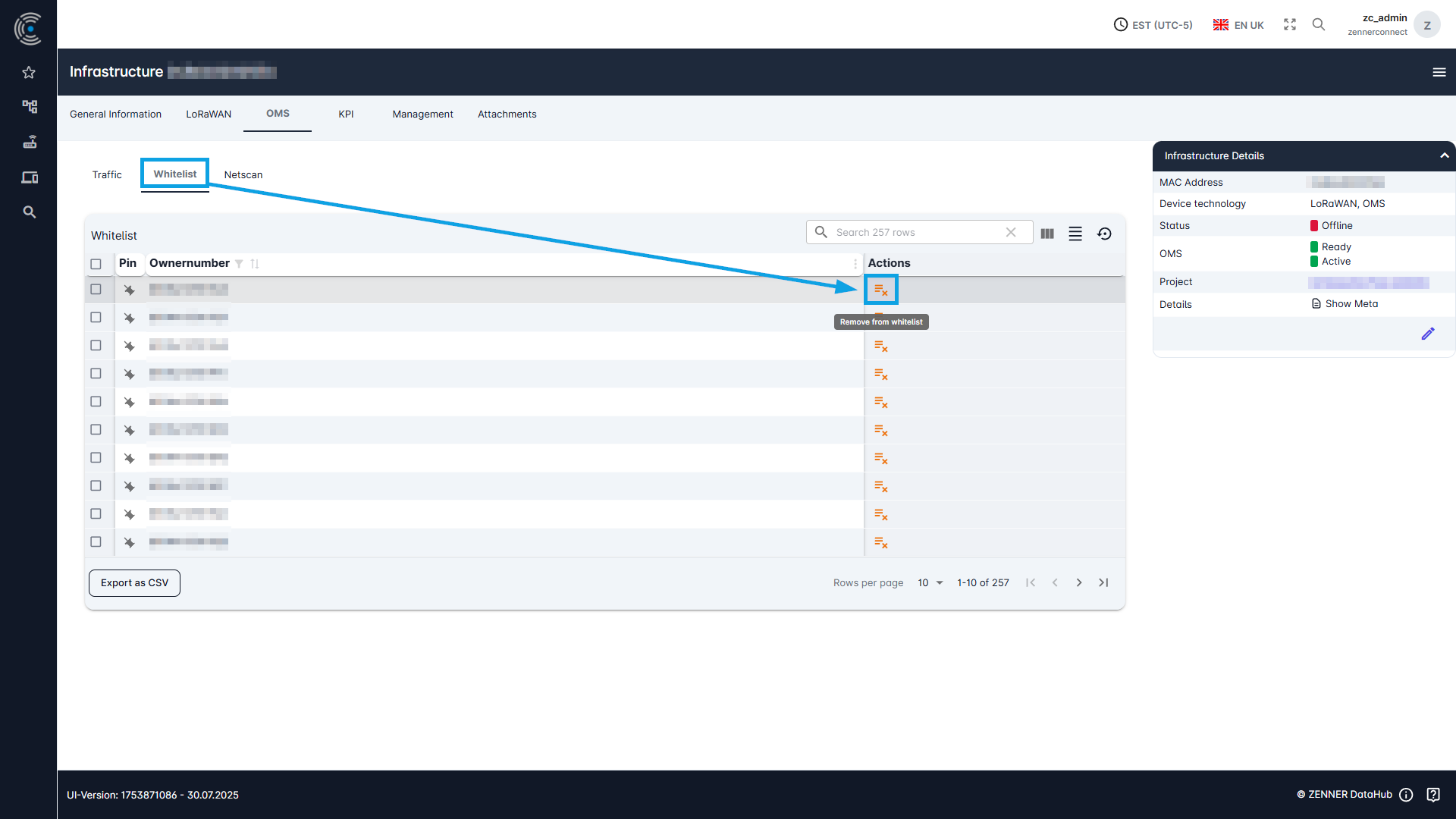
OMS Whitelist
The whitelist displays all OMS devices that have been assigned to the currently selected Gateway. The gateway’s memory is accessed and this information is retrieved. The device must be online in order to provide this information. This information is not stored on the Datahub.
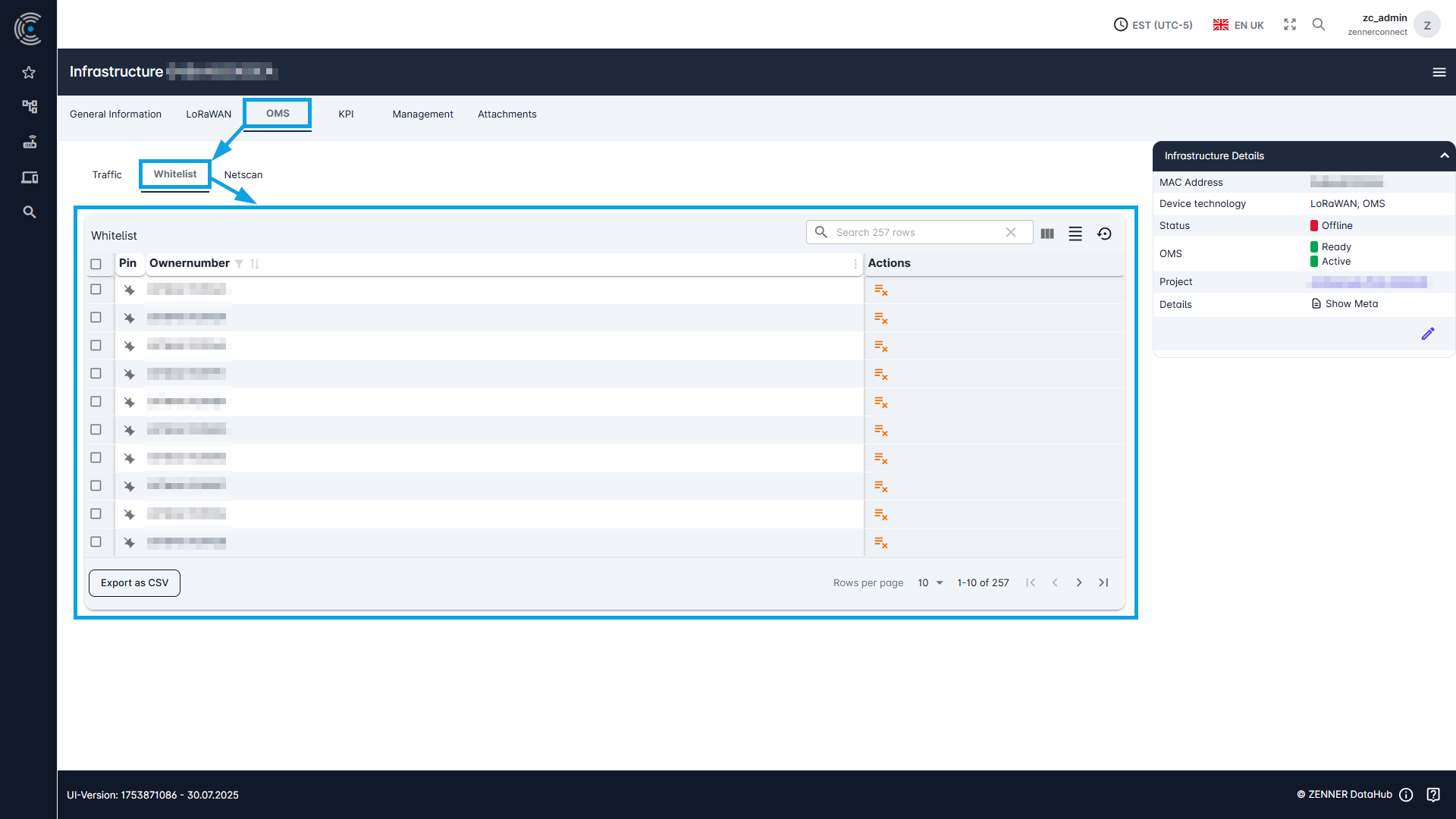
Adding OMS devices to the whitelist can be done manually in the “Netscan” tab, see below.
Whitelist Devices via Netscan
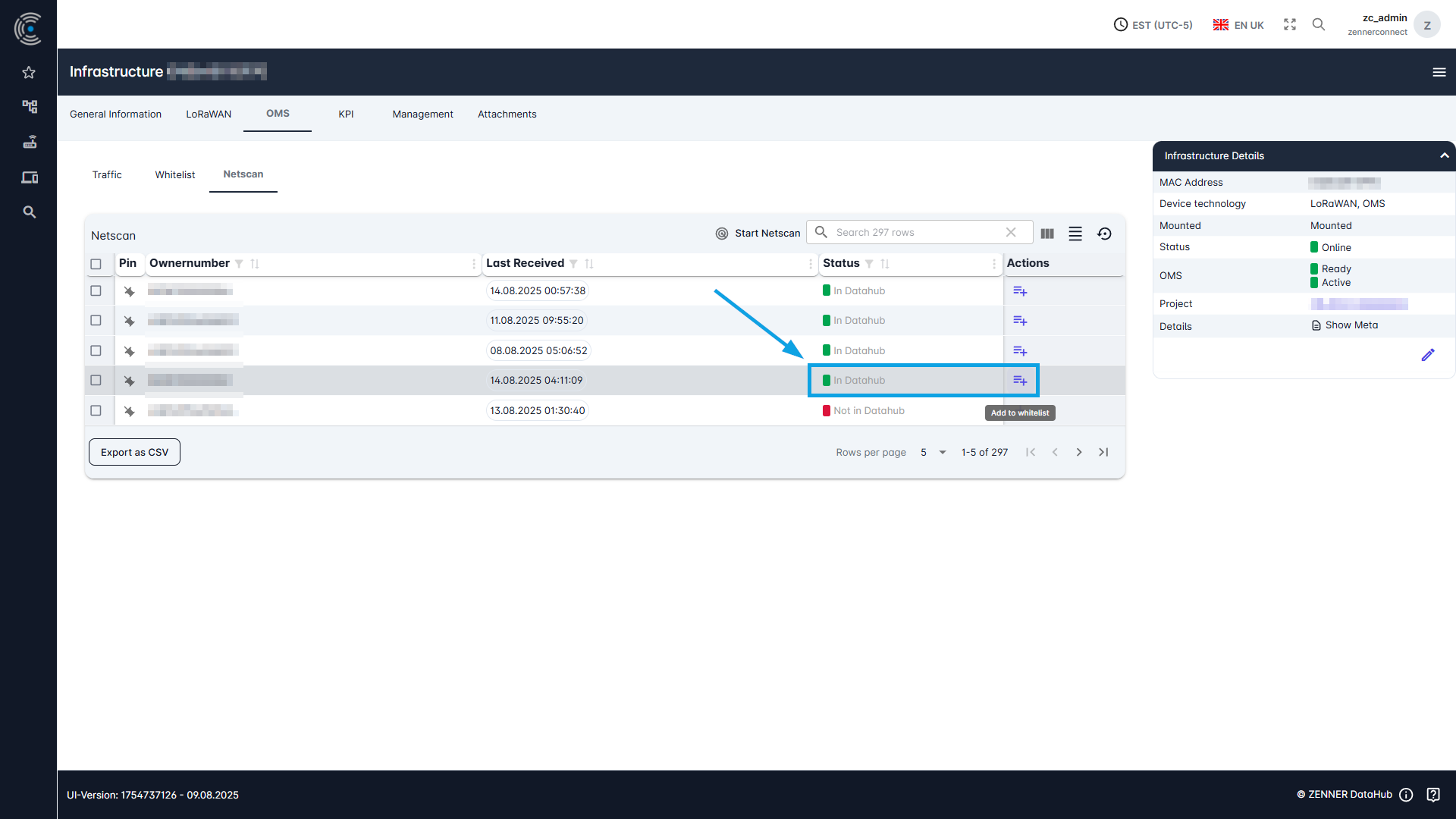
In the “Netscan” tab, you can scan for OMS devices within range by clicking on “Start Netscan”. The scan takes 10 minutes and a new packet with information about the devices found is displayed once per minute. All OMS devices found in the vicinity are listed here.
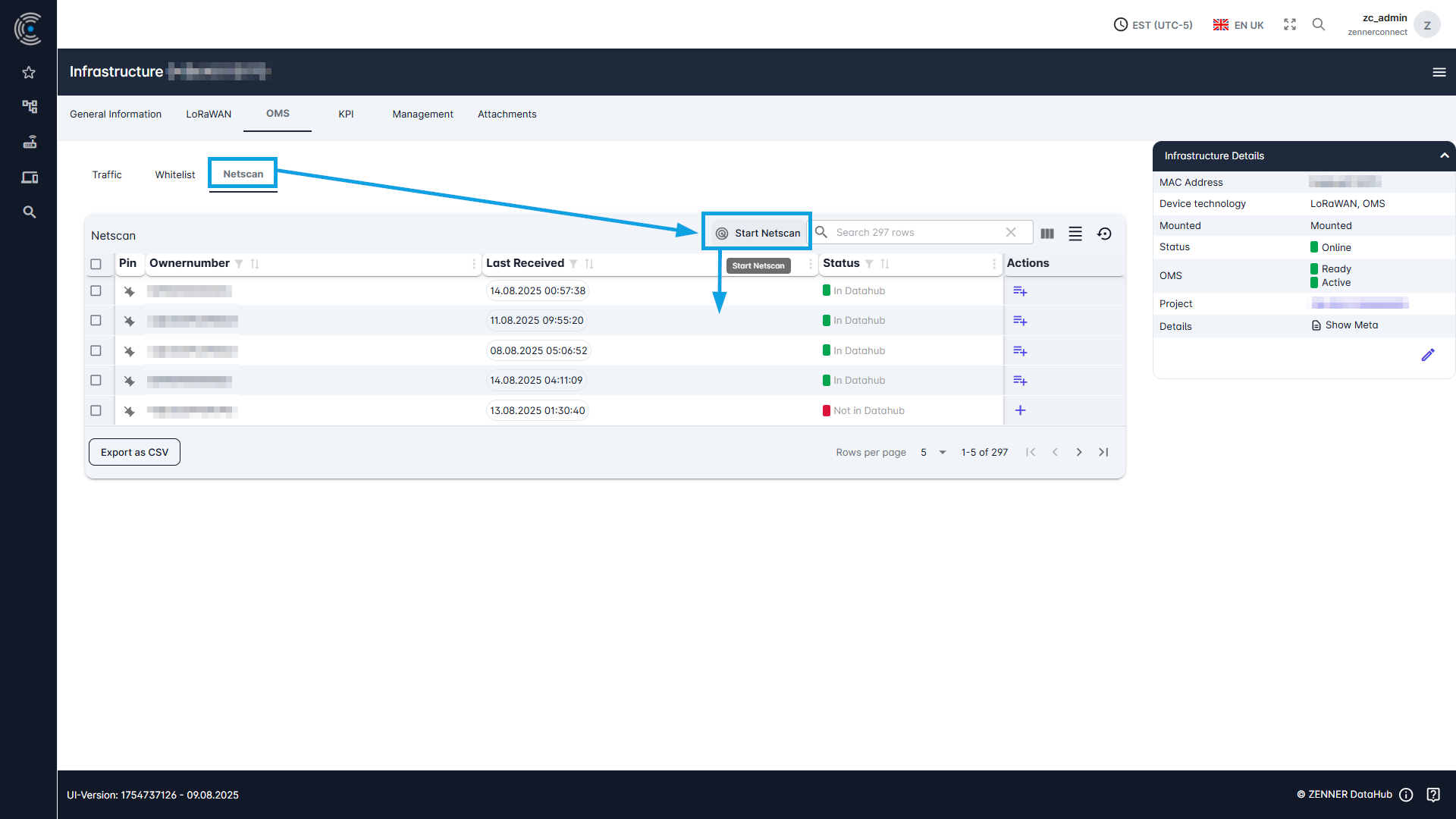
The owner number consists of a structure beginning with a number followed by three letters, which represent the manufacturer. This is followed by the DIN address, which is the only information displayed on most meters. However, it is important for the Datahub that the complete owner number is entered.
Devices in the Whitelist can have three different statuses:
- In Datahub
- Not in the Datahub
- Already in whitelist
If the device is not in the Datahub, you can add it to the Datahub using the respective button on the right in the column “Actions”.
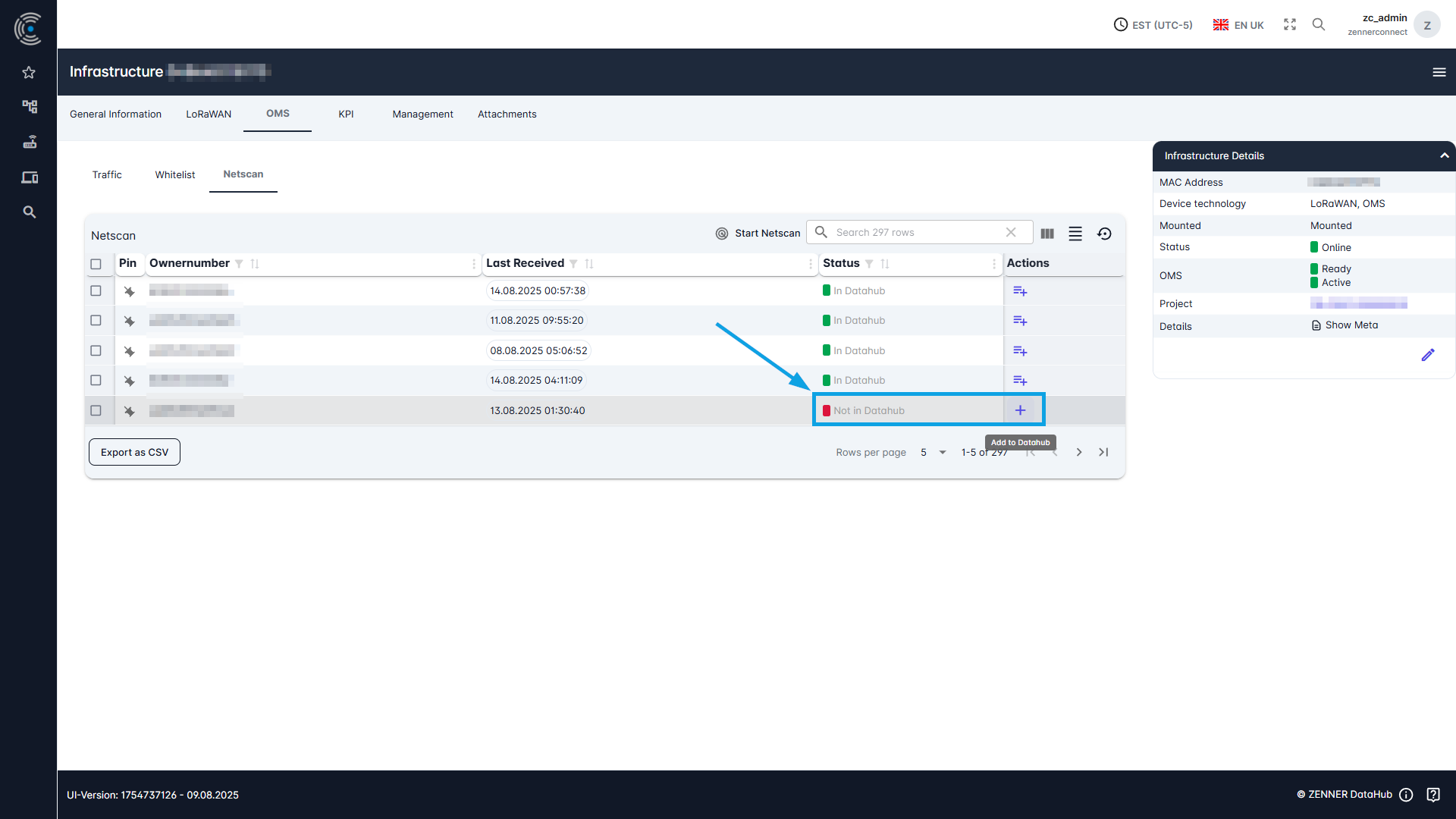
If the device is already in the Datahub, you can also add it directly to the whitelist using the respective button on the right in the column “Actions”.
Important: In order for the Netscan to start, the gateway must be online and OMS must also be switched on. If OMS is not yet switched on, see how to change this under “Switch On/Off OMS“.
Remove Devices from Whitelist
If certain OMS devices should not be received by a Gateway anymore, you can simply remove them again via the Whitelist, by using the respective “Remove from whitelist” button on the right in the column “Actions”.