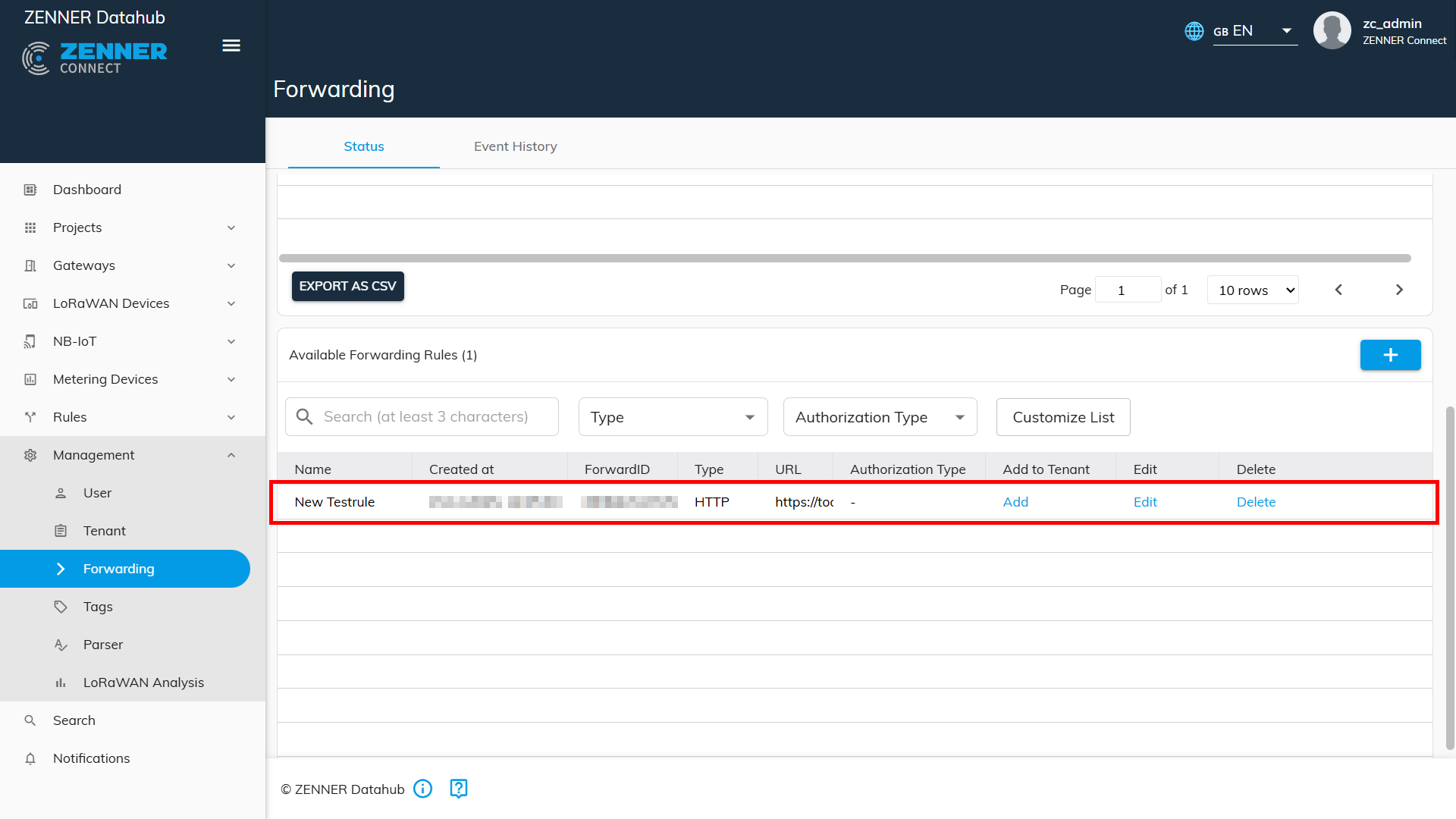
Assign existing Rules to Devices
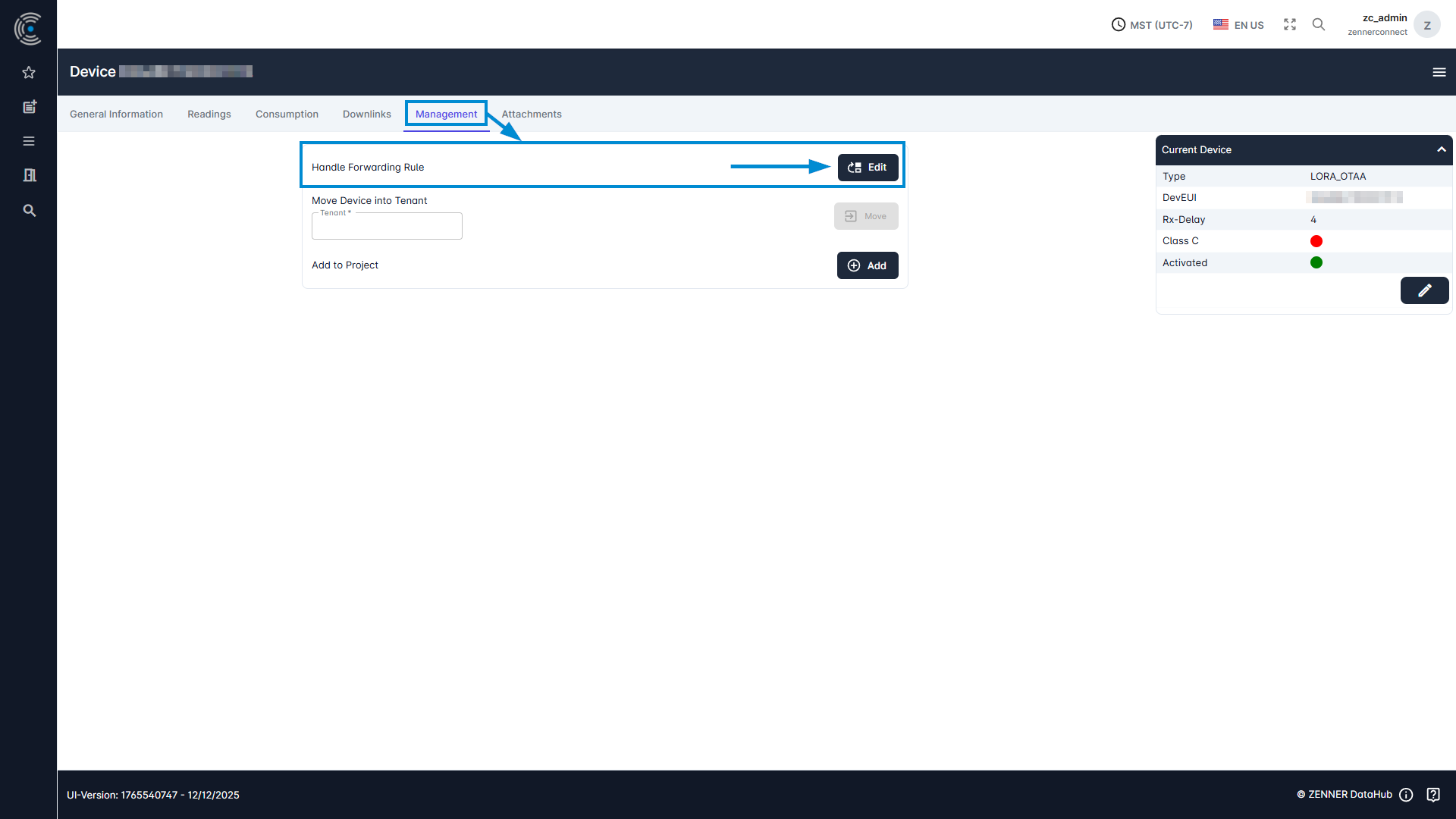
To assign Forwarding rules to a device, at first open the relevant device via the device list and go into the tab “Management”. Then click on the “Edit” button next to “Handle Forwarding Rule”.
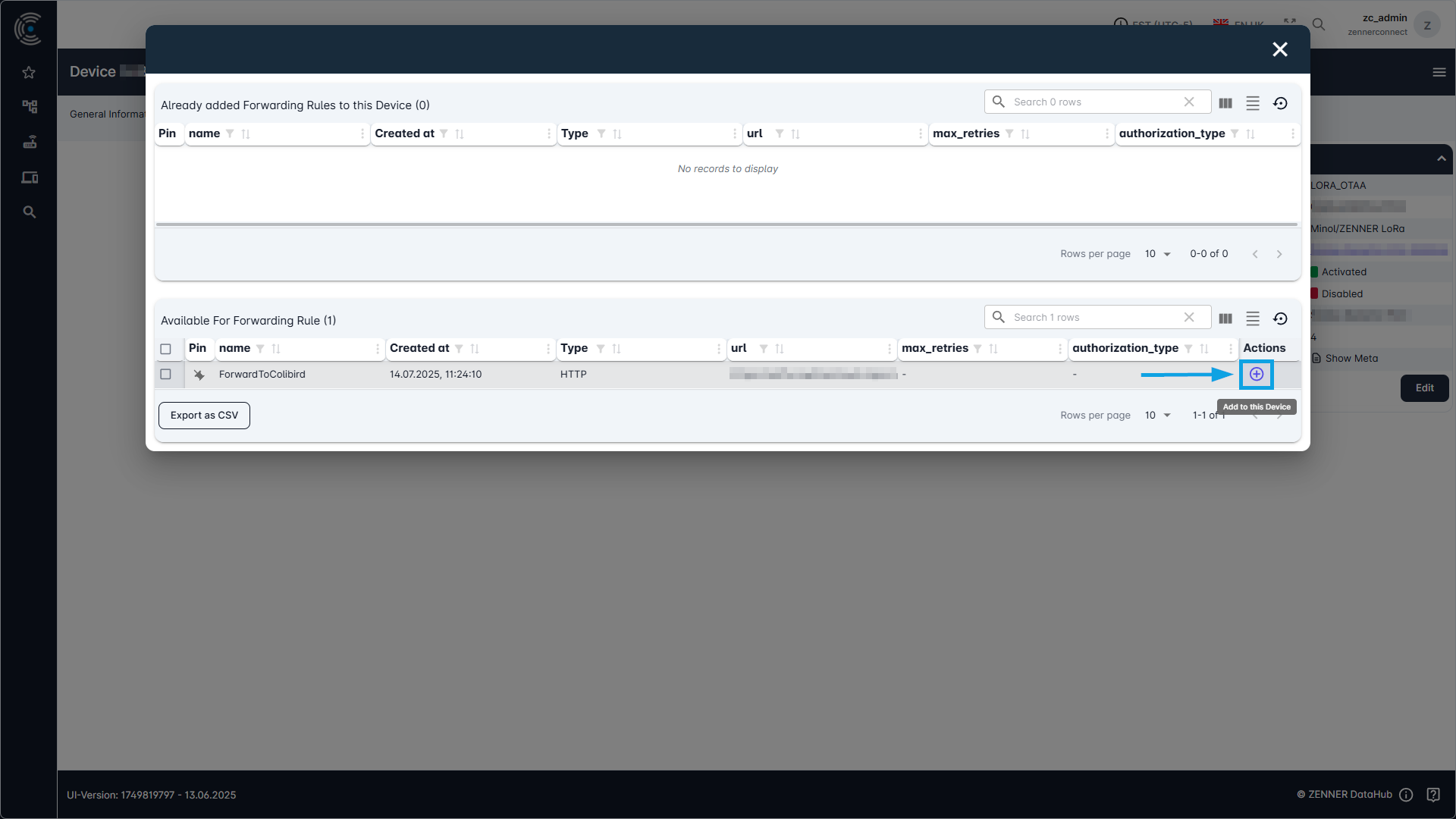
A list of the existing forwarding rules appears where you can assign the relevant rule or rules to the relevant devices via the “+” button in the column “Actions” on the right.
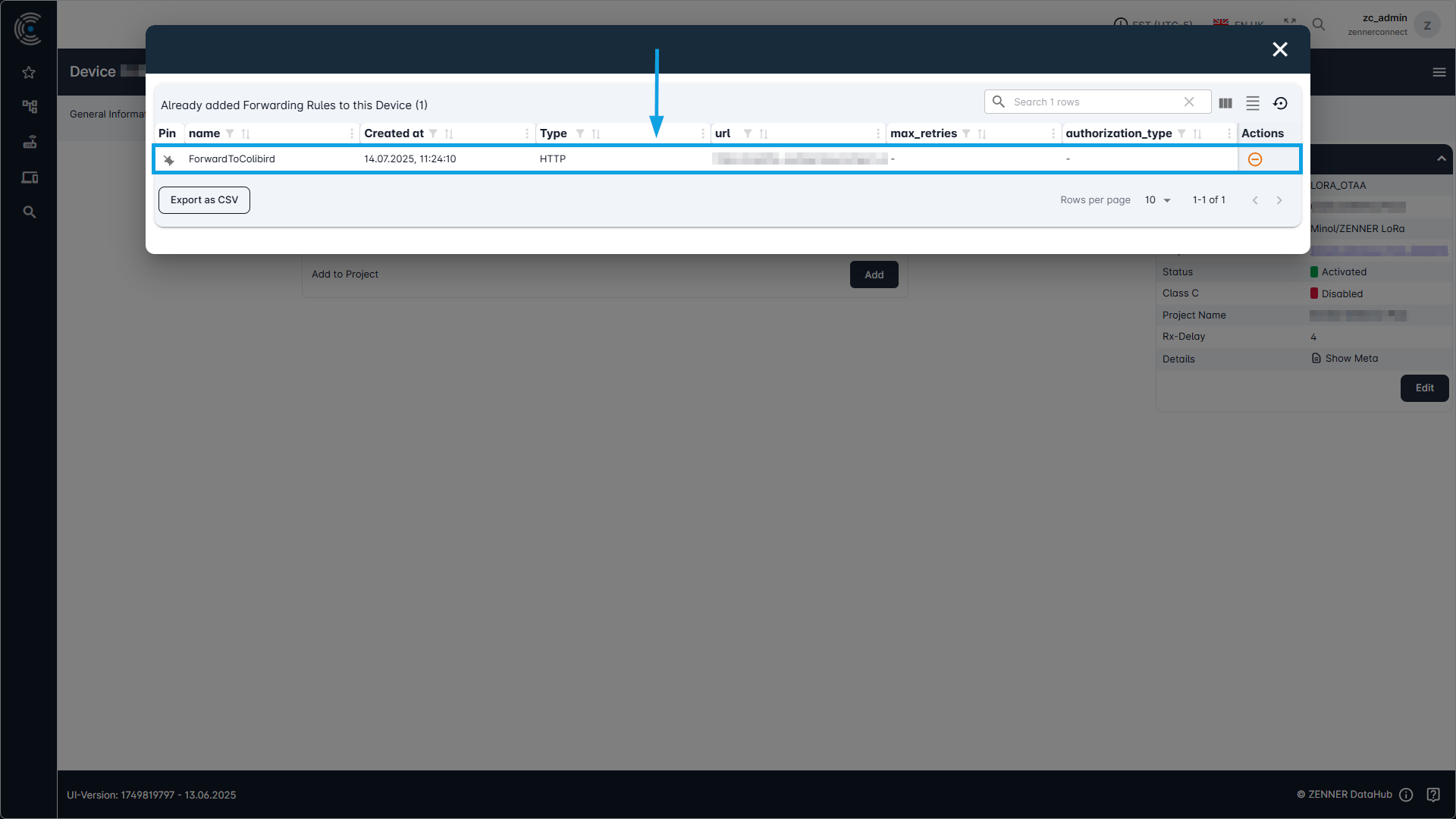
When you have assigned the relevant rule or rules to the respective devices, those then will be moved to the upper list of “Already added Forwarding Rules to this Device”.
Add new Forwarding Rules
If no forwarding rule has been created for your tenant yet, one must first be added before it can be assigned to devices as described above. However, since this function has not yet been implemented in the new Datahub user interface (what will be done as soon as possible), new forwarding rules currently must be added either in the previous ‘old’ user interface, as described below, or directly via the REST API.
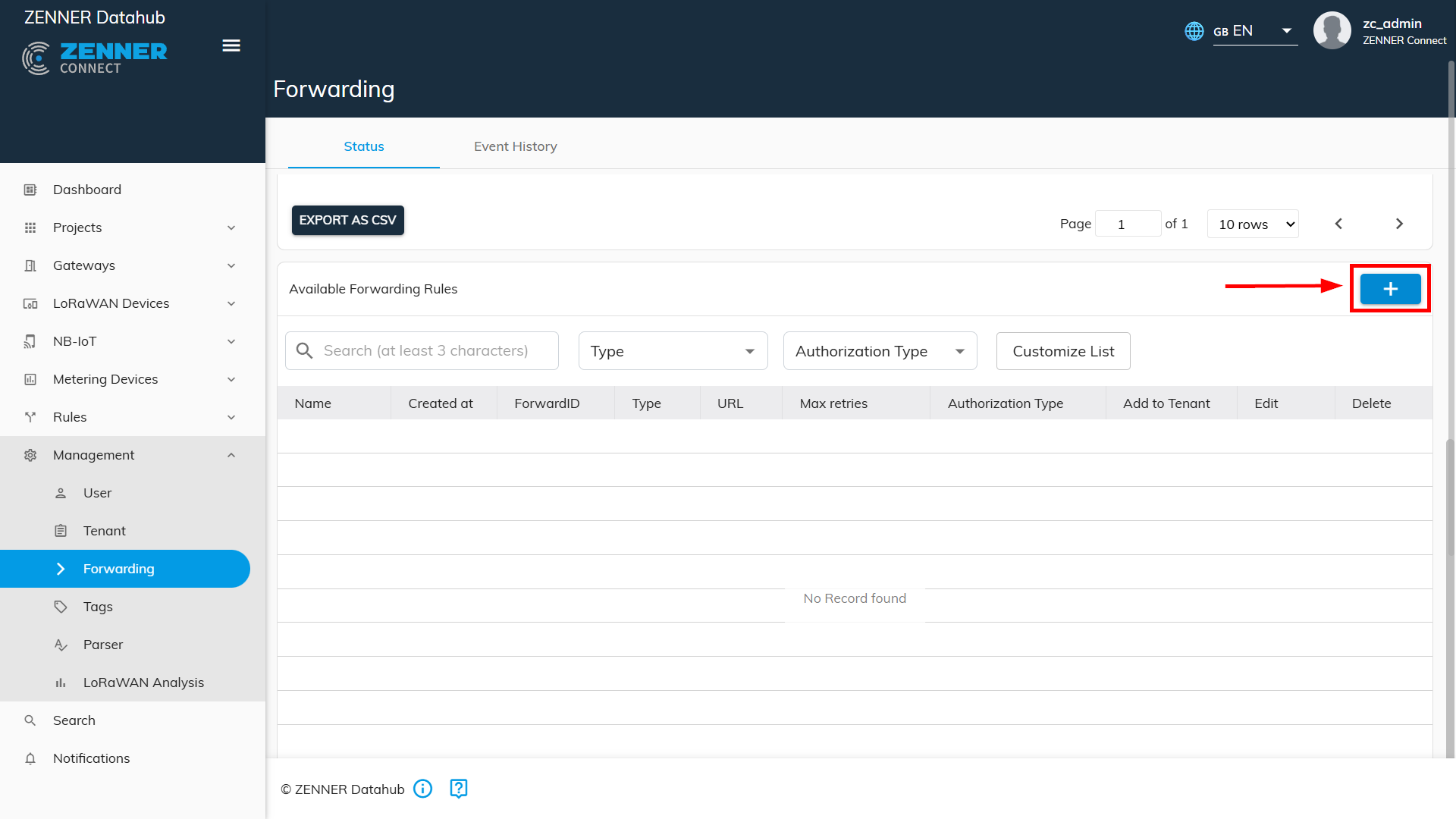
New forwarding rules can be added and managed via the previous ‘old’ user interface under “Management”/“Forwarding”.
To add a new forwarding rule, then click on the “+” icon.
A window will appear where you can enter the information needed for the new forwarding rule. The name, type, and URL are mandatory fields.
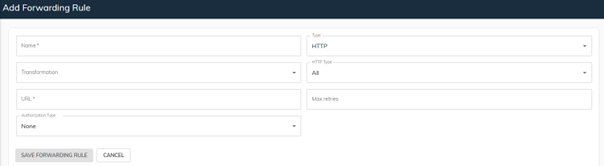
After clicking on “Save Forwarding Rule”, the new rule is added to the list of “Available Forwarding Rules” for the respective tenant and you can assign it to the relevant devices as described above.