
“Move Project” is a feature that allows you to move an entire project from one tenant to another.
But before we show you exactly how this works, it’s important to understand which objects/elements are moved along with the project and which are not.
Objects moved along with
- All devices & gateways assigned to the project
- Traffic of the assigned infrastructure/gateways
- Readings + Consumptions of the assigned devices
- Attachments of the assigned devices & infrastructure/gateways
Objects NOT moved along with
- Forwarding rules assigned to the affected devices
- Tags assigned to the affected devices & infrastructure/gateways
- KPIs of the assigned infrastructure/gateways
Requirements for Project Move with all Devices/Infrastructure
To migrate a project, including all devices and infrastructure, certain requirements must be met, which are as follows:
- Only one movement process can be running at a time. Once a movement process has been started, it must be completed before a new migration can be initiated.
- The source tenant and the target tenant must not be identical.
- The target tenant must actually exist.
- The user moving a project must have the necessary user permissions for both the source and target tenant.
How to move a Project
Now let’s look at exactly how to move a project in Datahub.
First, open the project list on the Projects page.
Here, you’ll find the “Move” button under Actions on the right next to each project.
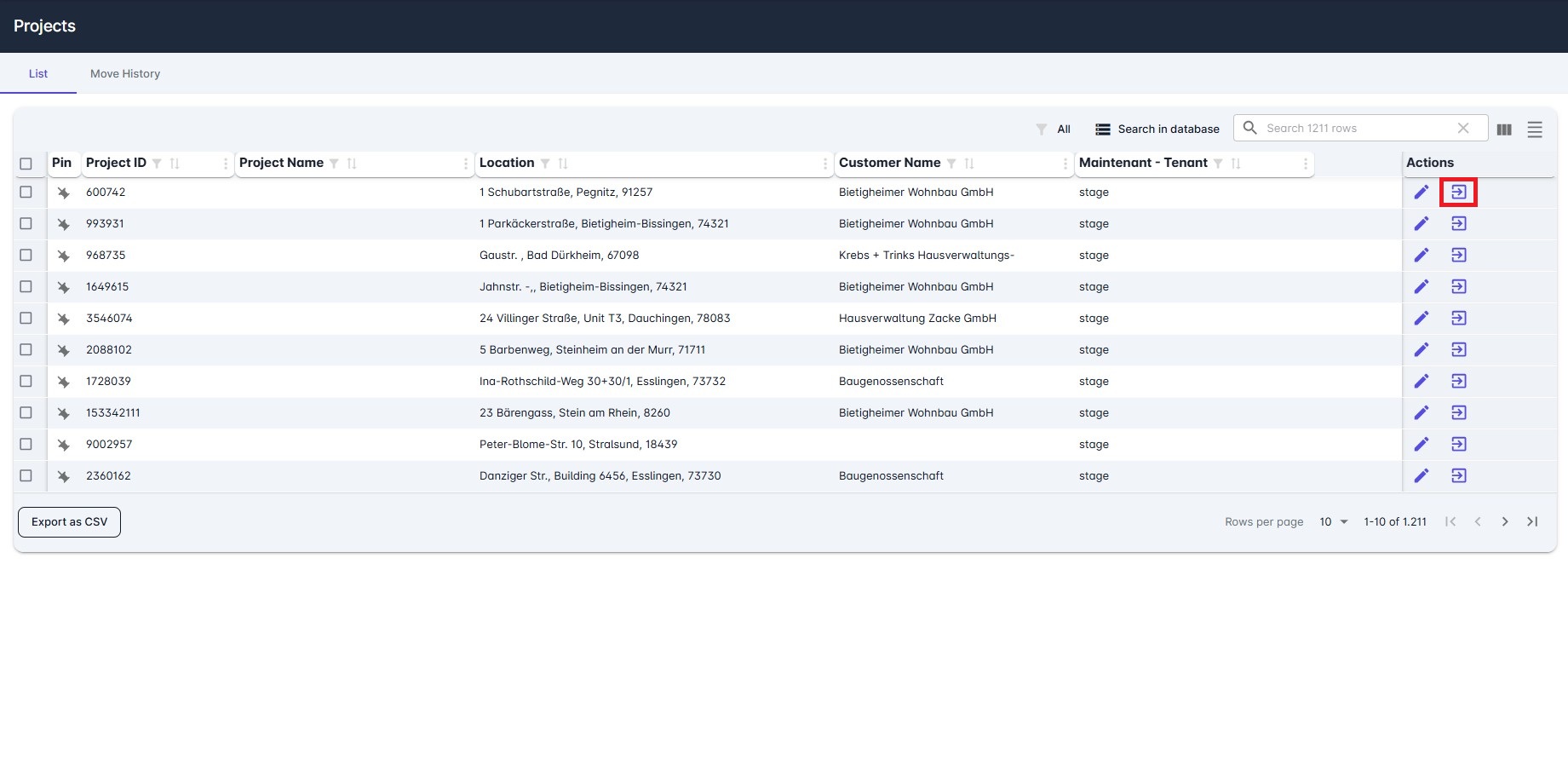
Clicking the “Move” button opens the “Move Project” page, where you can enter all information necessary for the movement.
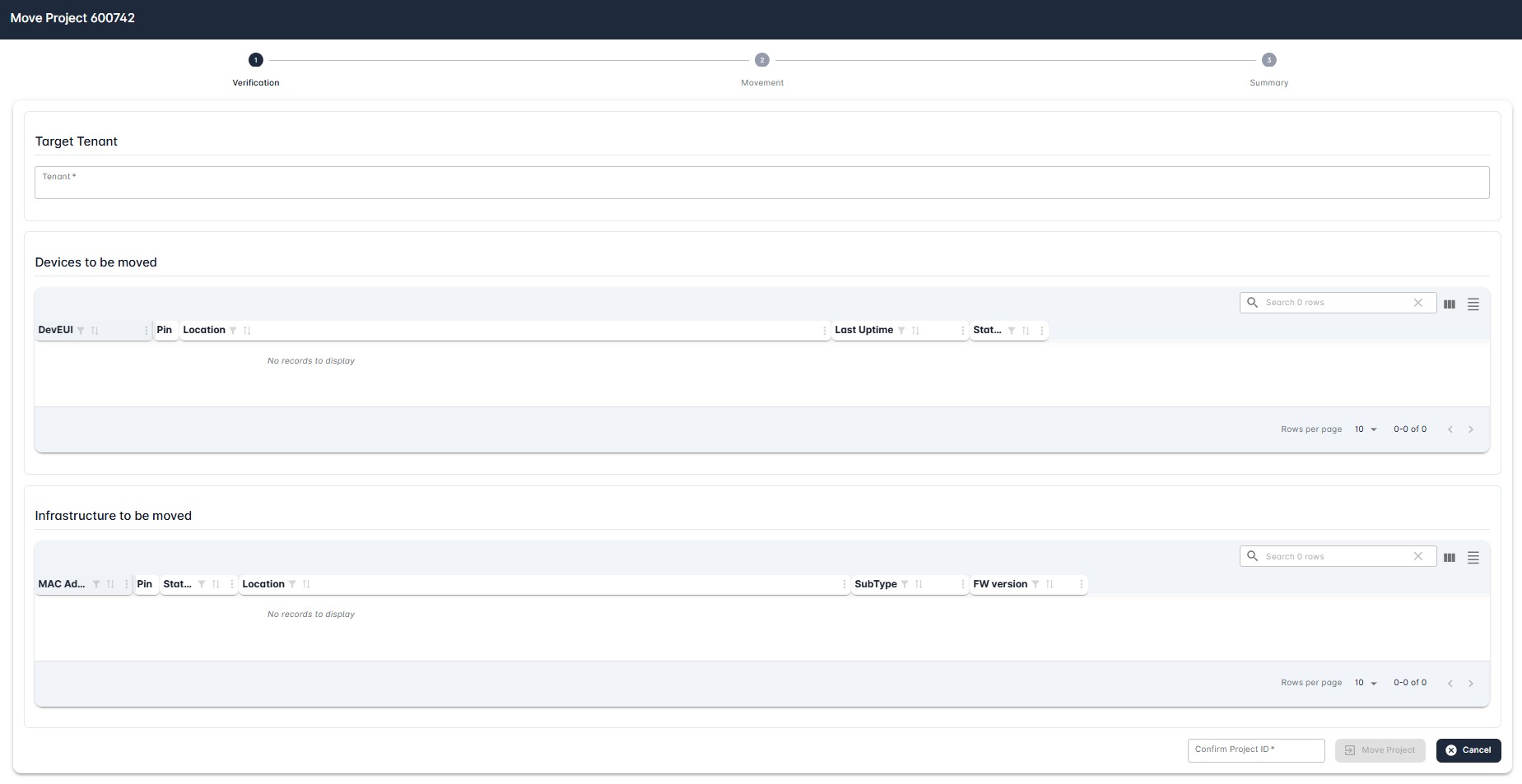
There are a few points to keep in mind here.
In the Target Tenant field, specify the target tenant to which the project is to be moved.
Below that, all devices and infrastructure that will be moved along with the project are displayed.
Here, on the right, you also have the option to search for specific devices or infrastructure to ensure they are included in the move.
Before the move can be started at the bottom, the project ID must be confirmed. Only then can you click the Move Project button.
Moved successfully
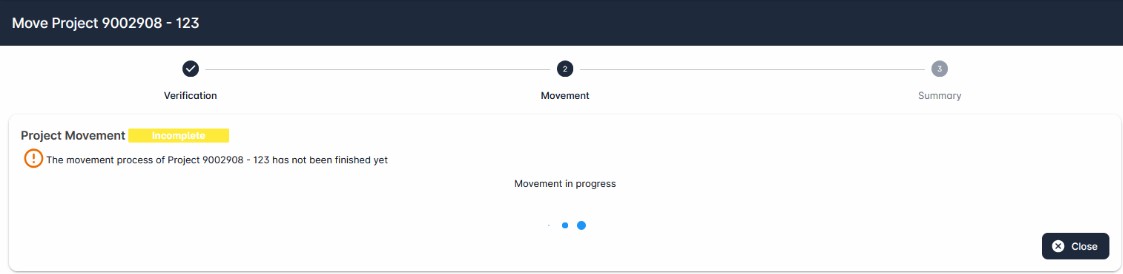
As soon as the move is initiated, a message appears indicating that the move is in progress. You can see this on the left by the status “Incomplete”.
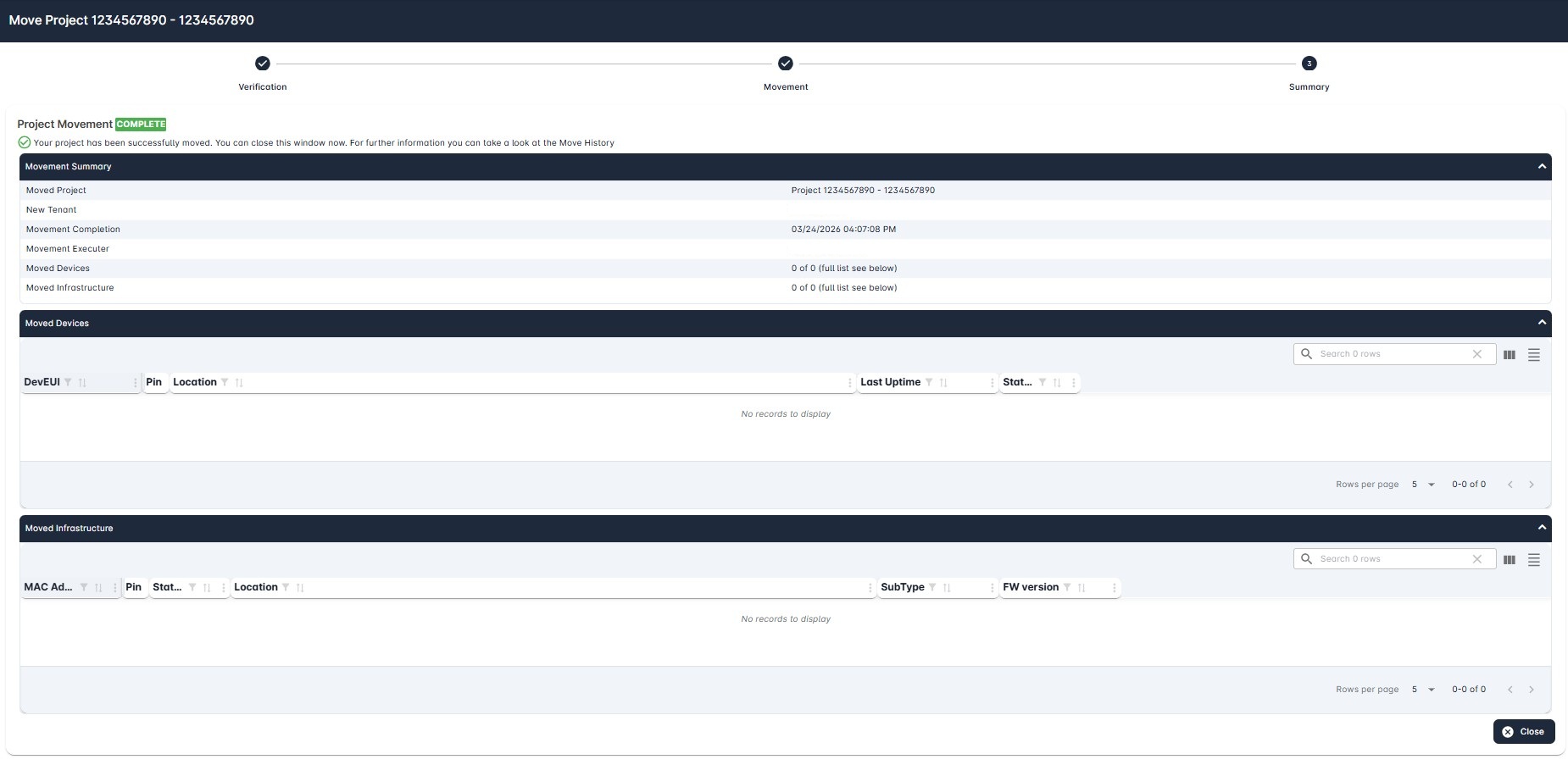
Once the process is completed successfully, the status “Completed” will appear on the left. This means that the movement to the new tenant was successful and that the project, along with its devices and infrastructure, is no longer available in the old tenant.
Error while moving
There are two different error messages that can appear if a project cannot be moved.
One possible cause is that some information was entered incorrectly, such as the tenant name. In this case, the movement process gets canceled respectively rolled back, the project is not moved and the status “Rolled Back” is shown on the left accordingly.

Next, try initiating the project movement again as described above and make sure to enter all the necessary information correctly this time.
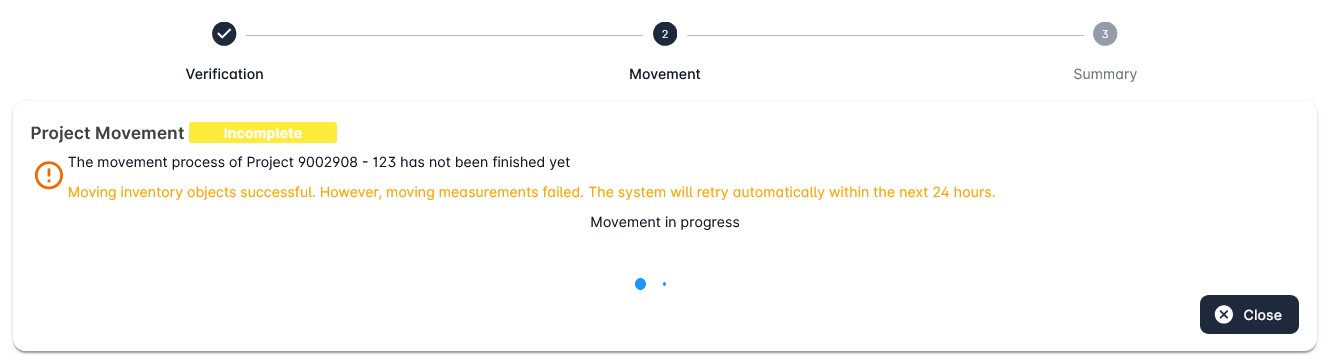
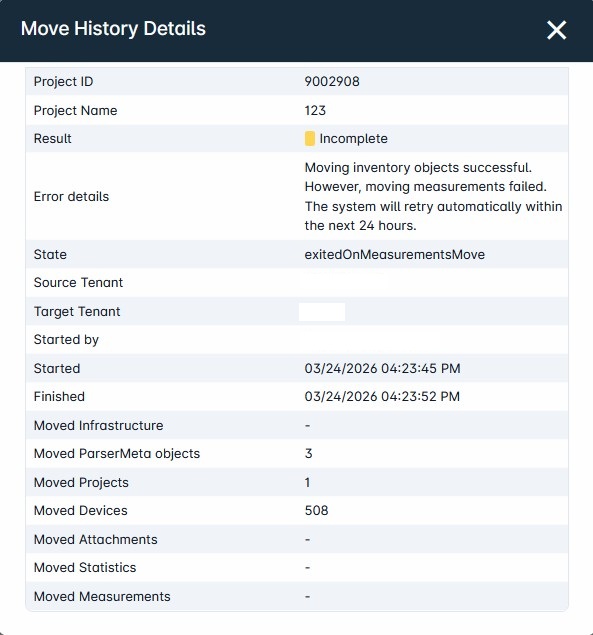
The other possible error message appears when movement was only partially successful and thus also could be not fully completed yet. For example, the inventory objects (i.e., devices and/or infrastructure) assigned to the project could be moved, but not including the associated traffic and/or readings. In this case, the status “Incomplete” is also shown on the left, but with an additional line below explaining that the system will retry the movement automatically again within the next 24 hours.
This can also be viewed under “Move History” in the “Move History Details” of the respective project, along with the previously mentioned hint next to “Error details“.
For more details about the “Move History”, see below.
Move History
The “Move History” you can find next to the Project List under “Projects”. The here appearing list shows all projects, for which a movement process has been triggered, including the respective status information whether the movement was successful or not.

Moreover, you can view additional information about each movement by opening the “Move History Details” via the “i” icon on the right.
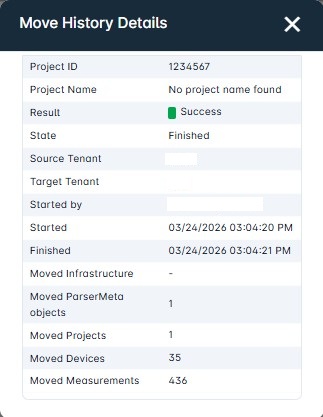
This section also shows who executed the “Move” command and how many devices, infrastructure objects, ParserMeta objects, and measurement values were moved.